Trade perps
You need a connected Kalshi account for this page. Why?
Perps trade on a market’s trade page. Trade on a market’s page opens it, asking which account when you’ve connected more than one. The ⋮ beside a position in your portfolio opens it too.
The trade page shows the market’s price chart and order book, your position in each subaccount with its protection, your open orders in the market, and the ticket. The chart draws your entries, Kalshi’s liquidation estimates, exit triggers, and resting orders, and the table under it gives each level’s distance from the mark and the position’s price P&L if the mark reached it.
The ticket
You size a perps order in contracts and price it per contract:
- Side: Buy / long or Sell / short. Clicking the bid or the ask above fills in the price and the side that trades against it.
- Type: Limit, or Market (IOC limit).
- Contracts and Limit price, per contract. The index level that price equals is shown beside it, to compare with Kalshi’s app, which quotes the index level. Or size by a dollar notional and Set converts it to contracts.
- Time in force: Good till canceled, with an optional expiry, Immediate or cancel, or Fill or kill.
- Subaccount: new orders go to the primary subaccount (0) unless you pick another. To close or reduce a position, trade in that position’s subaccount; elsewhere, the order opens an opposite position instead.
- Post-only: the order must rest on the book, so it’s good till canceled only.
- Reduce-only: the order can only shrink a position, so it’s immediate or cancel or fill or kill only.
Kalshi takes limit orders only. A market order is sent as an immediate-or-cancel limit a set distance through the far side of the book, 1% unless you change Limit through touch %. It fills what it can at or better than that limit, and the rest is canceled.
What the order does
Under the inputs, the ticket shows the order’s Notional, Est. initial margin, Effective leverage (notional ÷ estimated initial margin), Est. liquidation and its distance from the mark, and Funding per day at the current funding estimate. There’s no leverage setting: Kalshi sets margin from the order’s size, so leverage is a result of how many contracts you trade.
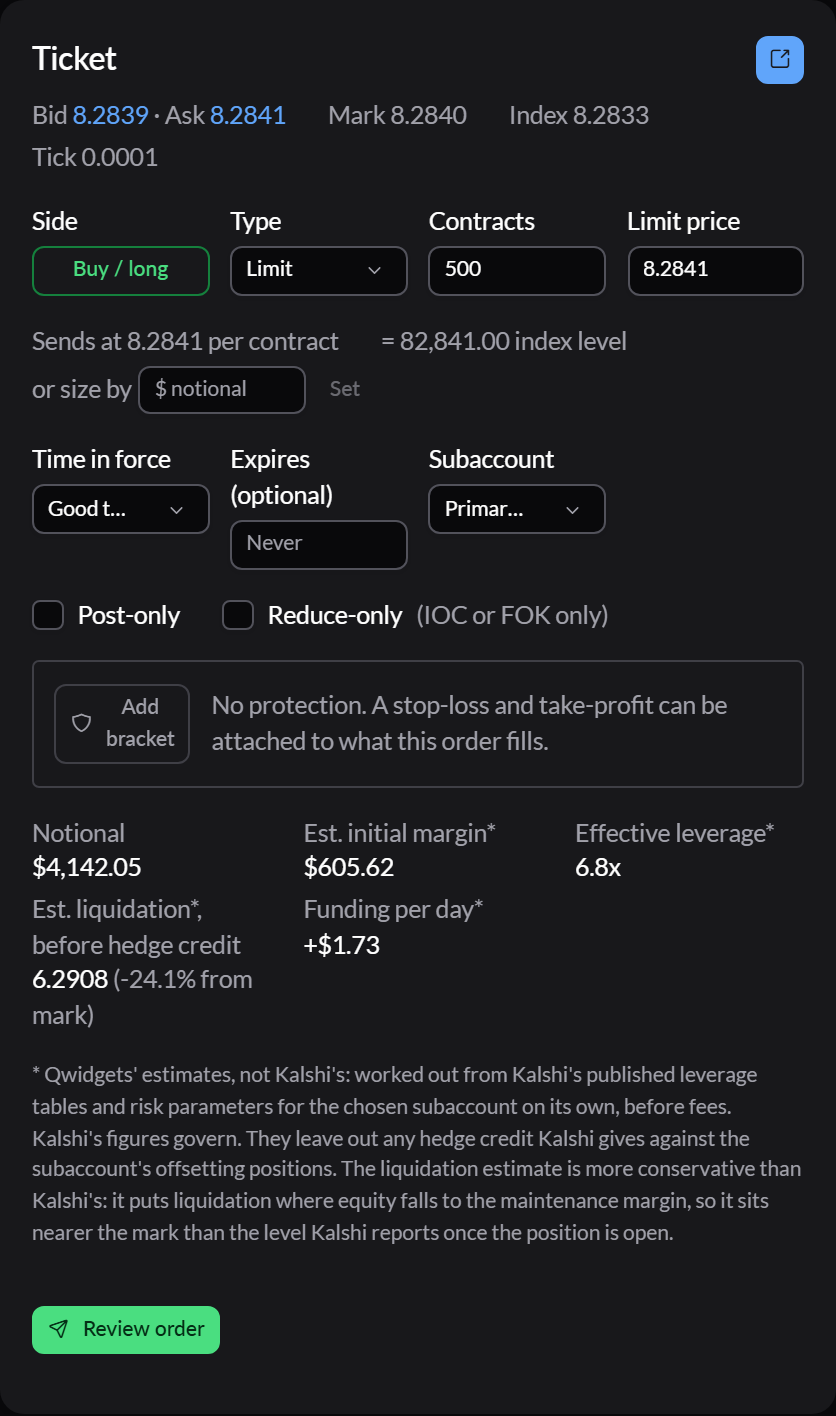
The figures marked with an asterisk are Qwidgets’ estimates, not Kalshi’s, worked out from Kalshi’s published leverage tables and risk parameters for the chosen subaccount on its own, before fees. Kalshi’s figures govern. The liquidation estimate is more conservative than Kalshi’s: it sits nearer the mark than the level Kalshi reports once the position is open. When the order would sit beside offsetting positions in a cross subaccount, the liquidation estimate is labeled before hedge credit.
Brackets
Add bracket attaches a stop-loss, a take-profit, or both to the contracts the order fills. It waits for the first fill, then protects what filled. A bracket can be attached at entry only in a cross subaccount; protect an isolated position once it’s open.
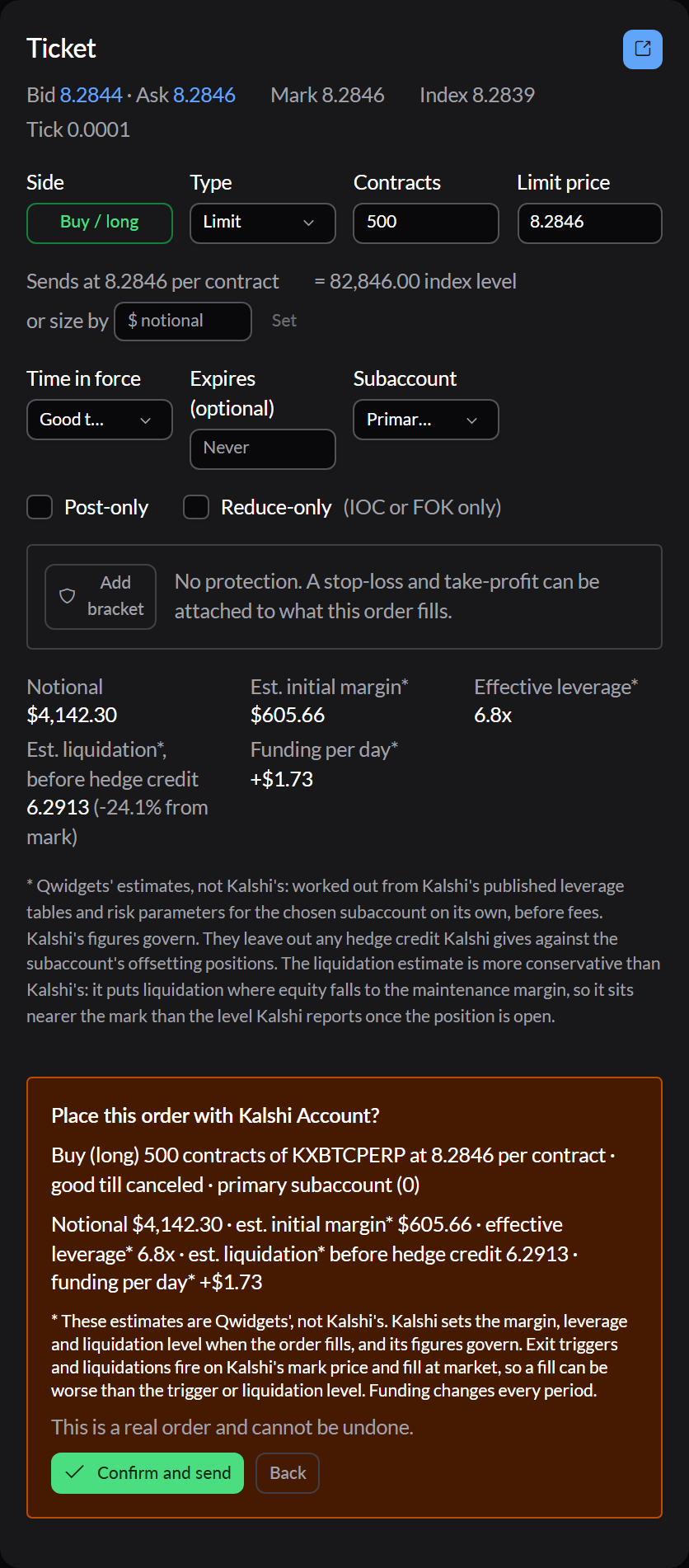
Confirm and send
Review order restates the order, its estimates, and the disclosure. Confirm and send places it; Back returns to the ticket. Exit triggers and liquidations fire on Kalshi’s mark price and fill at market, so a fill can be worse than the trigger or liquidation level.
Protecting a position
Each position on the trade page lists its protection, with Edit and Cancel. Bracket and Trailing stop add one:
- Bracket: a stop-loss, a take-profit, or both. Both legs are sent with every change, so a leg you leave blank is removed.
- Trailing stop: trails the liquidation mark by a distance in basis points or dollars per contract, and ratchets as the mark moves your way.
- On a cross position, a trigger can cover part of the position: enter the Contracts, or leave it blank for all of them. An isolated position holds one trigger, so a new one replaces the one it has.
Every trigger fires on Kalshi’s liquidation mark.
Kalshi’s app doesn’t show stop-losses, take-profits, or trailing stops on cross positions. One set from Qwidgets on a position in the primary subaccount is live at Kalshi and shown in Qwidgets, but you won’t see it in Kalshi’s app.
Add and Close beside a position fill in the ticket for it, in its subaccount. Close prepares a reduce-only immediate-or-cancel order for the whole position.
Managing orders
Each resting order has:
- Edit: change the price or size. A new price or a larger size loses the order’s place in the queue.
- Reduce: lower the size and keep the order’s place in the queue.
- Cancel.
Each change shows what will be sent, and goes once you select Confirm and send. Kalshi can take a few seconds to report a change, and the rows update when it does.
On a workspace
The Perps Trade Ticket widget is the same ticket on a workspace, for one market through one account, and the Perps Position widget shows a position with its protection and open orders, each editable. The button beside the trade page’s Ticket and Your position and orders adds them to a workspace.
Practice on Kalshi’s demo exchange
A Kalshi Demo Account trades the same way with play money, on an exchange with its own prices and order books. Its pages say so, and its confirmation says the order goes to the demo exchange.