Sharing by link
A shared workspace has a public link. Anyone with it can open the workspace in a browser, with live data and no account needed. Sharing is off until you turn it on.
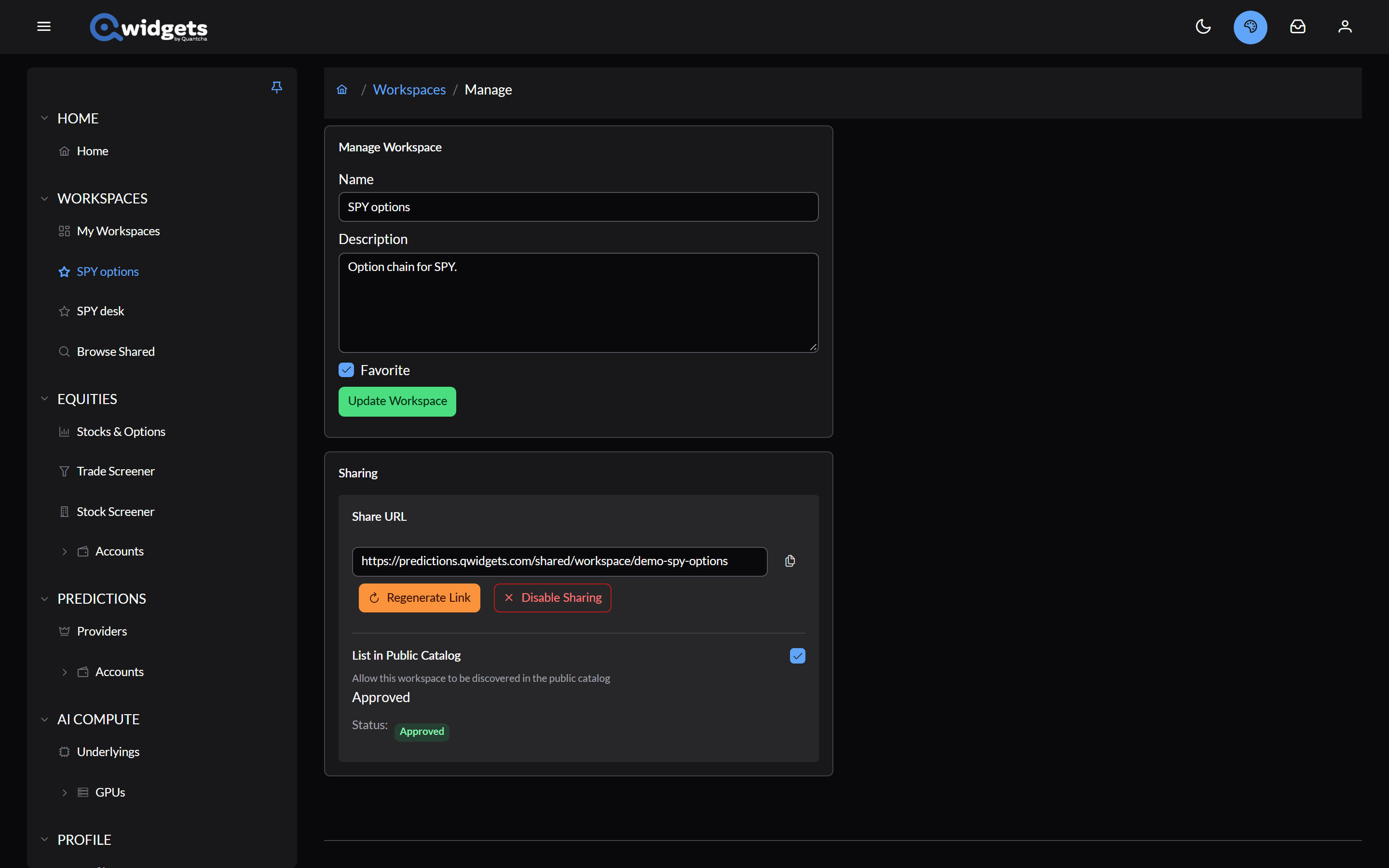
Turn sharing on
- Open the workspace’s manage page: the gear on its card in My Workspaces.
- In Sharing, select Enable Sharing.
The link looks like https://predictions.qwidgets.com/shared/workspace/…. Qwidgets picks a short random identifier unless you choose your own: select Custom URL first and enter 4 to 64 letters, numbers, hyphens, or underscores. A custom identifier has to be one nobody else is using.
Once sharing is on:
- The copy button next to Share URL copies the link.
- Regenerate Link gives the workspace a new random link. The old one stops working.
- Disable Sharing turns the link off, and takes the workspace out of the catalog.
What people see
People who open your link see your workspace as it is when they open it, with live data. They can rearrange it in their own tab and copy it to their own account, but nothing they do changes yours.
Your account connections are never shared. Account widgets show Click to configure to other people, and stock and option widgets that use your brokerage show delayed data to them.
Some news sources don’t allow their articles on a shared page. If a Link List widget shows one of those sources, Qwidgets won’t turn sharing on until you remove or change it.
List in the public catalog
Check List in Public Catalog to ask for the workspace to appear in Browse Shared. Sharing has to be on first. Its status shows PendingReview until it’s reviewed, then Approved or Rejected. Approved workspaces appear in the catalog and can be featured.
Unchecking the box takes the workspace out of the catalog. Its link keeps working.