Copying shared workspaces
Browse shared workspaces
Browse Shared, in the left-hand menu, lists the workspaces in the public catalog, featured ones first. Search by name or description. No account is needed.
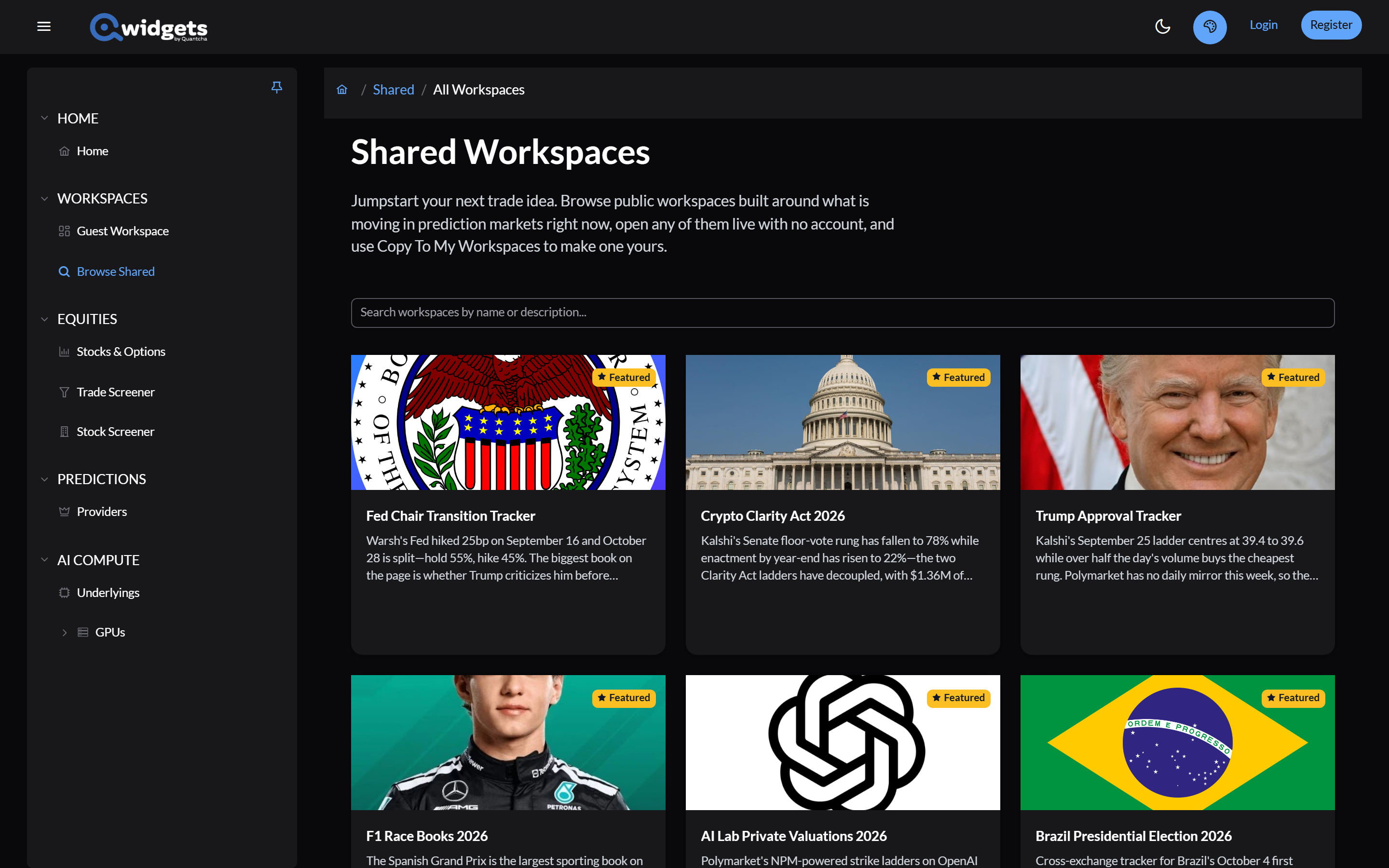
Open one
A shared workspace opens live in your browser: its widgets load current data, just as they do for the owner.
You can rearrange, add, configure, and remove widgets, but those changes stay in your browser tab. They never change the owner’s workspace. Reset Workspace clears them.
A shared workspace shows the layout its owner has when you first open it in a tab. To pick up the owner’s later changes, open it in a new tab.
Make it yours
Select Copy To My Workspaces at the top of the workspace. It becomes a new workspace in your account, including any changes you made in the tab, and opens so you can keep working. The copy is independent: the owner’s later changes don’t reach it, and yours don’t reach theirs.
Copying needs a sign-in. If you aren’t signed in, sign in or register first, then open the workspace and select Copy To My Workspaces.
What doesn’t come with it
Shared workspaces never carry their owner’s account connections.
- Stock and option widgets that used the owner’s brokerage show delayed data instead. To use your own brokerage, open the widget’s Configure dialog and choose it as the provider.
- Account widgets, such as Portfolio or Prediction Account, show Click to configure. Configure them with your own account, or remove them.
- Prediction market widgets work as they did for the owner, because exchange data doesn’t need an account.
A copied widget keeps its title-bar color, so a widget colored for a brokerage may be showing delayed data until you reconfigure it.