Getting Started
Qwidgets is free, and most of it works without an account. Open it and start with a stock, an option chain, or a prediction market. Sign in when you want to keep your work, and connect a brokerage or Kalshi account when you want your own positions and live data in the same place.
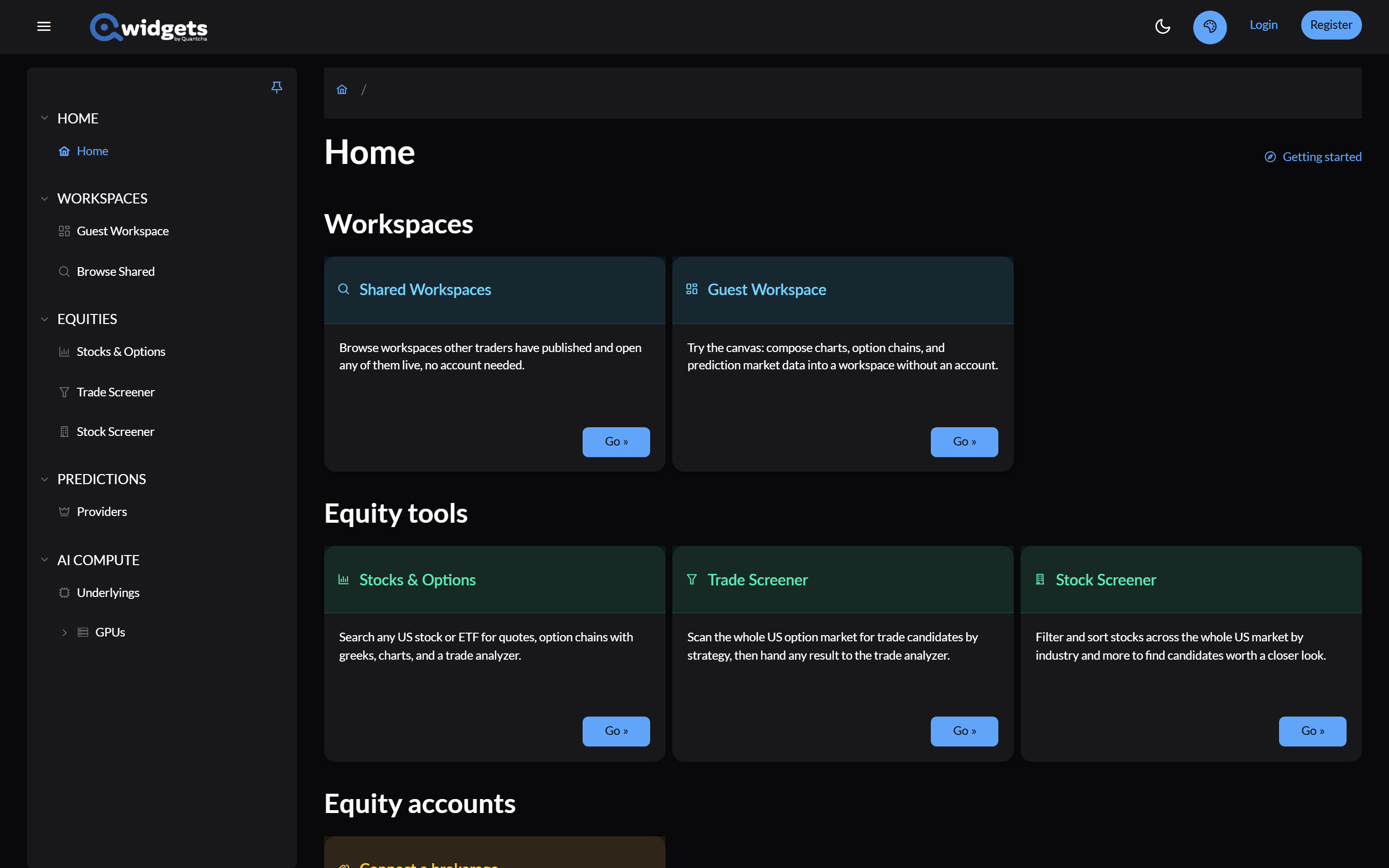
What you can do right away
Without signing in, you can use:
- Stocks and options. Search any US stock or ETF for its quote, option chains with Greeks, option charts, and a trade analyzer that models payoff, breakevens, and probability of profit. Screen the option market for trades, or the stock market for candidates. See Options and Equities.
- Prediction markets. Browse events and markets from Kalshi, Polymarket, and more, compare prices across exchanges, and read order books and price history. See Prediction markets.
- Workspaces. Open a workspace someone shared with you, or build one in the Guest Workspace. See Workspaces.
Without a connected brokerage, stock and option data comes from a delayed feed: at least 20 minutes behind the market, and updated intermittently.
A guest workspace is kept only in the browser tab you built it in. Closing the tab clears it. Sign in to save your work.
What signing in and connecting add
Qwidgets has three levels of access. Each one adds to the one before it.
| What it adds | |
|---|---|
| Guest | Most of Qwidgets: the analysis tools, market data, and prediction market data. Nothing is kept between sessions. |
| Signed in | Saved workspaces, favorites on the home page, copies of shared workspaces, and saved searches, screens, and trade analyses. |
| Connected accounts | A brokerage adds your positions, balances, orders, trading, performance tracking, and quotes that refresh about every 15 seconds. A Kalshi account adds your event contract portfolio, orders, settlements, and trading. |
Your own positions are what make book management, stress testing, and performance tracking work, so those need a connected brokerage.
Sign in
Select Register in the top bar to create an account, or Login if you have one. Once you’re signed in, the home page shows My Workspaces and your favorite workspaces, and the left-hand menu adds your workspaces and accounts.
To keep a workspace someone shared with you, open it and select Copy To My Workspaces. It becomes your own workspace, with every widget, which you can change without affecting the original.
Connect a brokerage or Kalshi account
- On the home page, select Connect a brokerage or Connect a prediction account. This opens the list of integrations that support it.
- On the provider’s card, select Select.
- For a brokerage, select Connect, then sign in at the brokerage and approve access. You come back to Qwidgets, which confirms the connection.
- For Kalshi, create an API key on your Kalshi profile page, then paste its key ID and private key into API Key and Private Key, and select Create Kalshi Account Integration. A read-only key is enough to see your portfolio. To trade from Qwidgets, the key also needs trading permission. Qwidgets never moves money, so it never needs transfer permission.
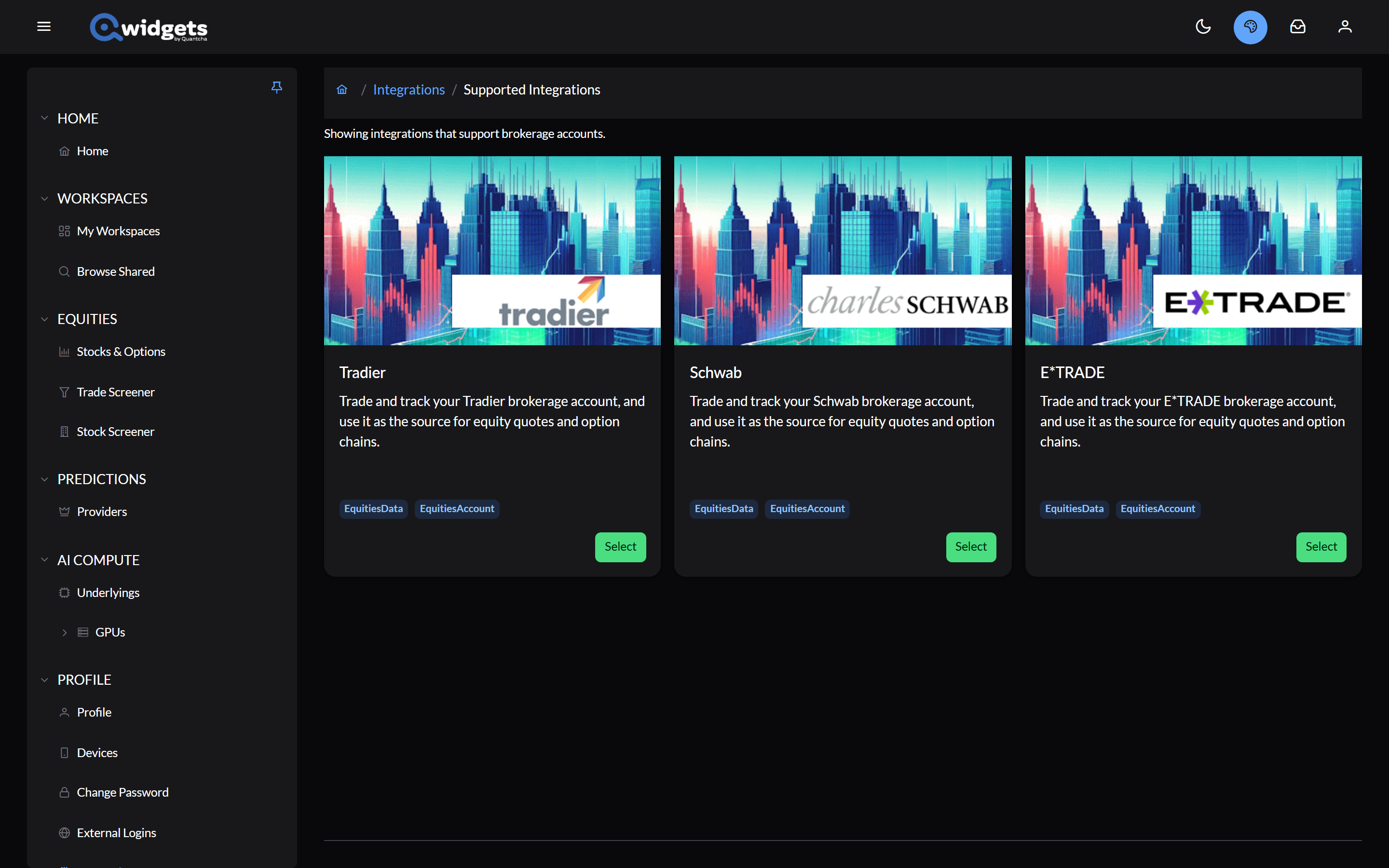
Your accounts then appear under Accounts in the left-hand menu and on the home page. Accounts and connections covers what each connection does, and the Coverage Matrix lists every integration.
Some brokerages ask you to approve access again from time to time. The Coverage Matrix lists how often. Qwidgets shows a banner when a connection needs you.
Where to go next
- Workspaces: compose the views you’ll return to.
- Options: the analysis and search tools.
- Tutorials: common tasks, step by step.