The canvas
Widgets sit on a grid. You arrange them by hand, and Qwidgets saves the layout as you go.
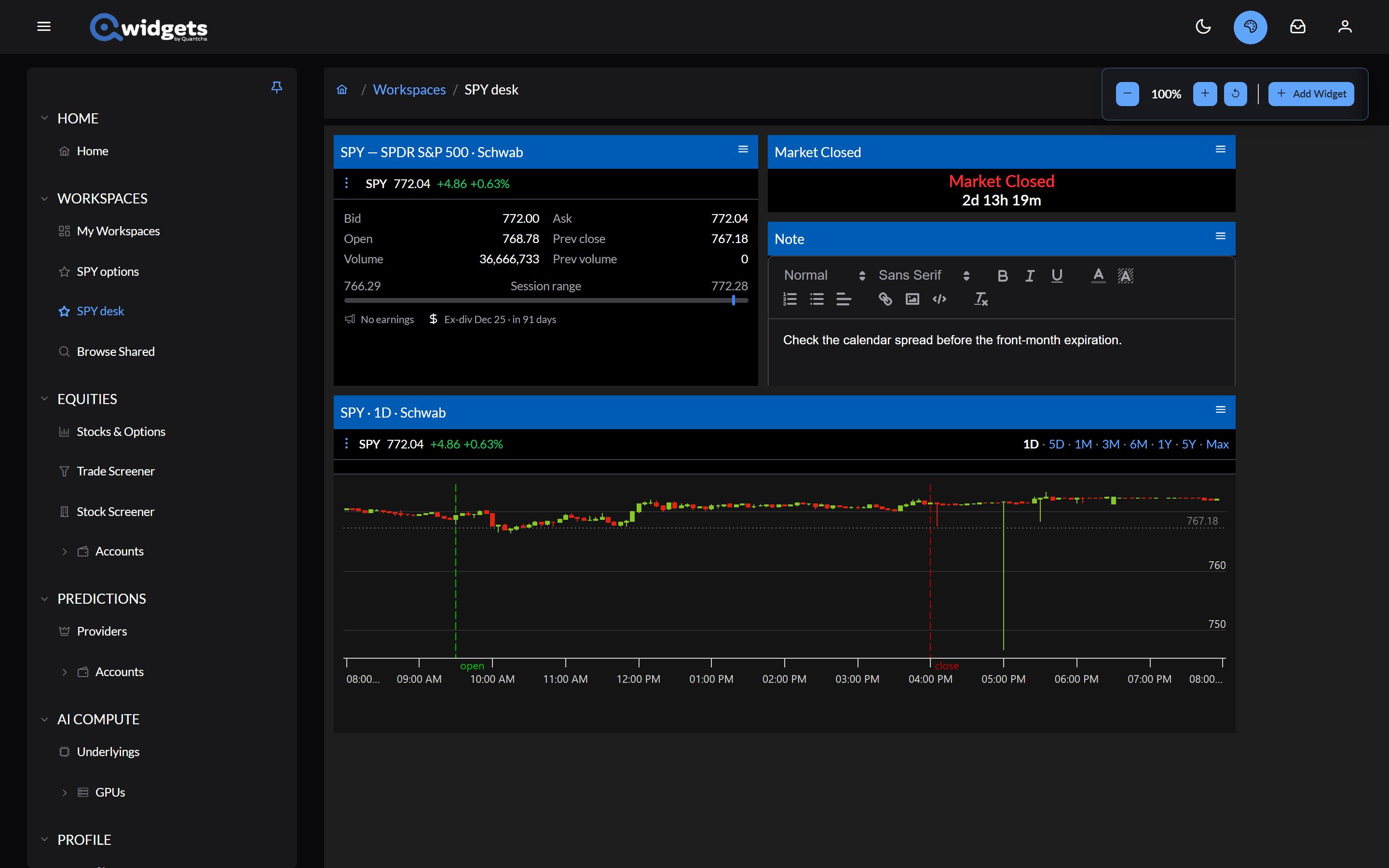
Arranging widgets
- Move a widget by dragging its title bar. Widgets in the way move aside rather than overlapping.
- Resize a widget by dragging its edges or corners. Each widget has a minimum width.
- Pan by dragging an empty part of the canvas. The canvas always leaves room beyond the furthest widget, so there’s space to add more.
Changes to the layout save automatically. If you have the same workspace open on another device, it updates there too.
Zoom
The zoom controls at the top of the workspace go from 50% to 200%: − zooms out, + zooms in, and the reset button returns to 100%. The zoom level is saved with the workspace.
On a wide screen, hovering over the controls shows a minimap of the whole workspace. Click a spot on it to jump there, or scroll over it to zoom.
On a phone-sized screen, the workspace always shows at 100%.
The widget menu
Each widget’s title bar has a menu button on the right:
- Configure opens the widget’s settings.
- Clone adds a copy of the widget, with the same settings and colors, next to the original.
- Remove takes the widget off the workspace right away.
Configuring a widget
Configure opens the Configure Widget dialog:
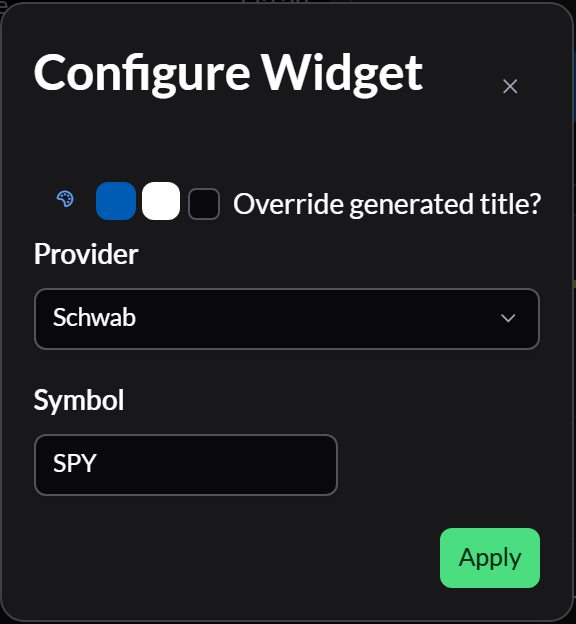
- Colors. The palette button offers preset title-bar colors for Qwidgets, each brokerage, and each prediction market exchange. The two color pickers set the background and text colors yourself.
- Title. A widget names itself from what it shows. Check Override generated title? to give it your own.
- Settings specific to the widget, such as the symbol, the data source, or the account.
Select Apply to save. A new widget opens this dialog as soon as you add it.
Many widgets also have controls in their own top bar, for settings you adjust while watching the output, such as a chart’s range. Those save as you change them.