Composing widgets
Add a widget
Select Add Widget at the top of a workspace.
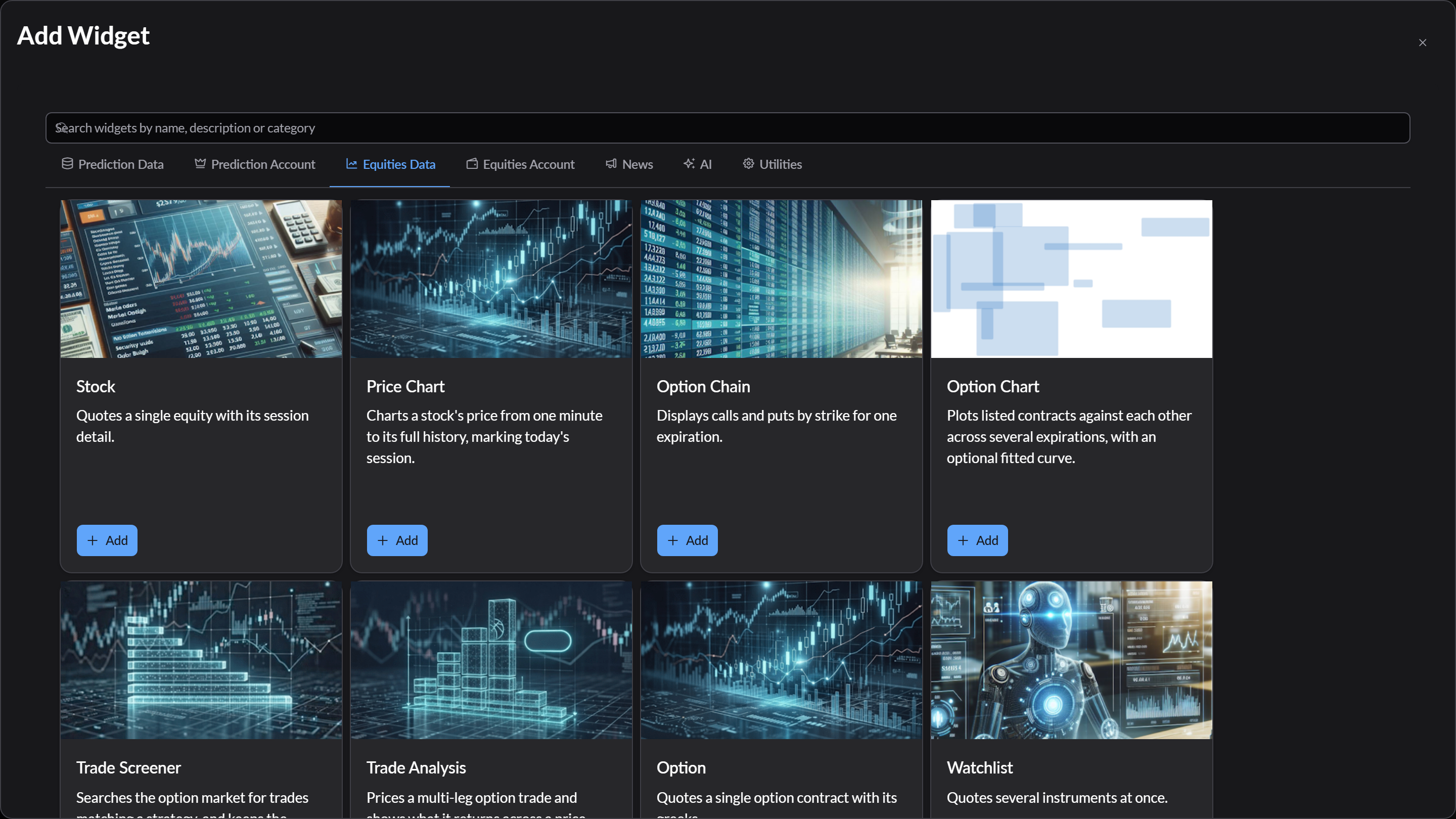
- Browse by category: Prediction Data, Prediction Account, Equities Data, Equities Account, News, AI, and Utilities.
- Search by typing in the box at the top. It matches names, descriptions, and categories. Press Enter to add the first match.
- Select Add on a tile, or click its picture.
Some widgets need a connected account, such as a brokerage for the Portfolio widget or Kalshi for Prediction Portfolio. Their tiles list Required Integrations, with a Connect link for any you don’t have yet.
The new widget goes into the first open space nearest the top left of the workspace, and its settings open so you can choose what it shows. See The canvas.
Start a workspace from what you’re looking at
Stock, prediction market, and account pages can build a workspace for you, with widgets already chosen. On one of those pages, select Share To Workspace (the icon next to a panel), then Create Workspace:
| Start from | Widgets offered |
|---|---|
| A stock or ETF | Stock, Option Chain (when the symbol has options), and Market Clock; Watchlist optional |
| A prediction market event | Charts for the event and related events; tables and history optional |
| A brokerage account | Account Balance, Portfolio, and Orders; Trade Ticket optional |
| A Kalshi account | Account summary, Portfolio, Orders, and Settlements |
Pick the widgets you want, then select Create. When you’re signed in you can also set the workspace’s name and description first.
When you aren’t signed in, these pages build the guest workspace instead, and replace whatever was in it.
Send one widget to a workspace
The same Share To Workspace button lists your workspaces, or Guest Workspace when you aren’t signed in. Pick one, and a widget for what you’re looking at is added there.