Stocks and quotes
A symbol’s Overview tab shows its price chart, its quote, and a summary of its options. The other tabs, Chain, Charts, Analyze, Search, and Calendar, are its option tools; they’re hidden for a symbol with no listed options.
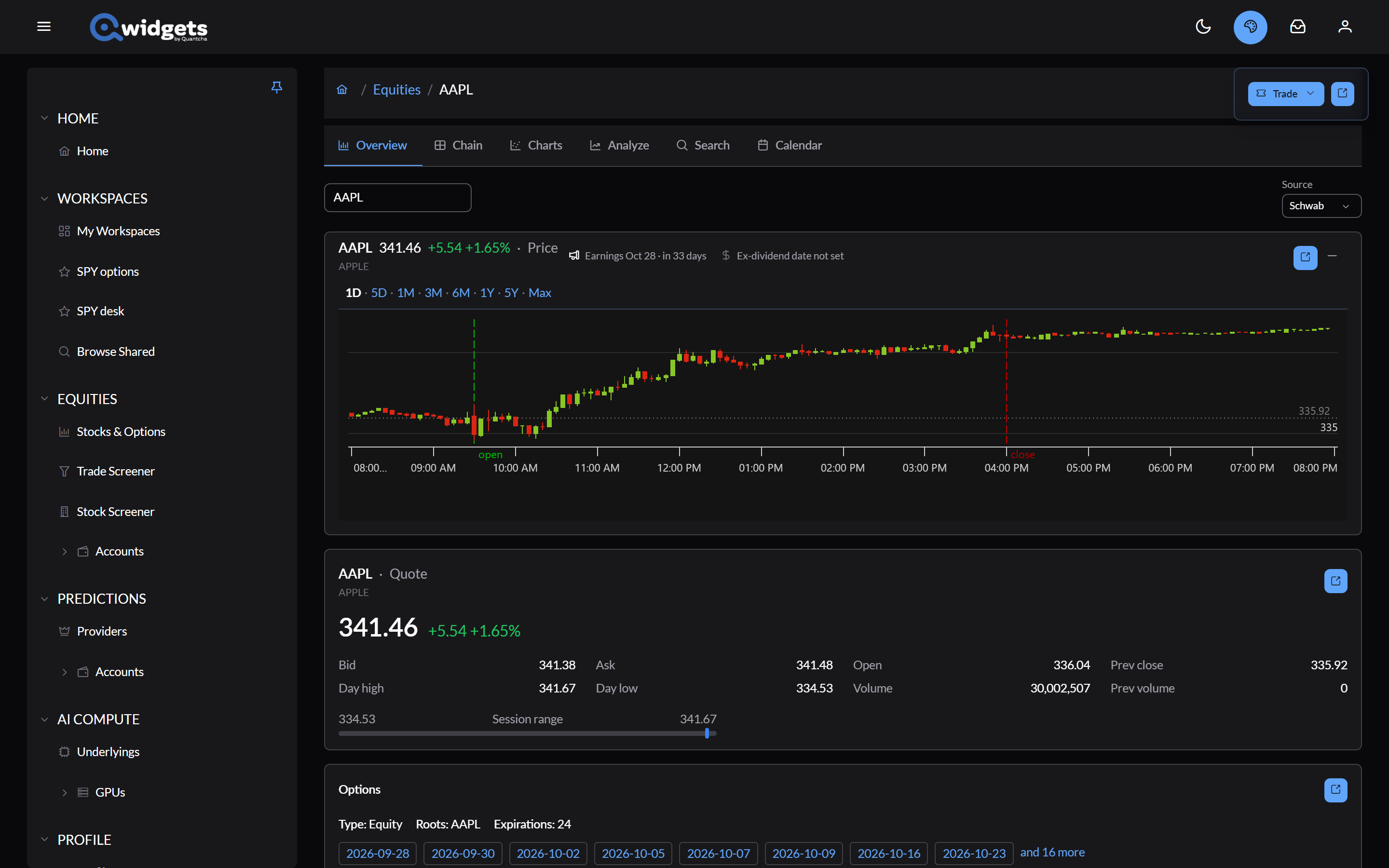
The price panel
The panel at the top shows the last price and the day’s change, and two upcoming dates:
- Earnings: the next report date and how far off it is. Prices and implied volatility often move sharply around a report. Funds show No earnings.
- Ex-dividend: the next ex-dividend date. Shares bought from that day on don’t receive the next dividend, and short calls in the money are more likely to be assigned the day before.
The icons turn amber within a week of the date, and red on the day before and the day itself.
The chart covers 1D, 5D, 1M, 3M, 6M, 1Y, 5Y, or Max. The one-day view runs from 8:00 AM to 8:00 PM Eastern, marks the regular open and close, and draws the previous close as a dotted line. Scroll or pinch to zoom, and shift-scroll or swipe sideways to pan.
Which ranges are available depends on the data source: some brokerages don’t provide price history, and the delayed feed doesn’t either. See the Coverage Matrix.
The panel collapses with the button at its top right, which gives more room to the tool below it on every tab.
The quote
The quote panel shows the last price and change, Bid, Ask, Open, Prev close, Day high, Day low, Volume, and Prev volume, and a Session range bar marking where the price sits between the day’s low and high. A bid and ask with a wide spread are dimmed, because they’re unlikely to trade at those prices.
Options
The Options panel lists the symbol’s option roots and how many expirations it has, with links to the nearest expirations on the option chain.
Data source
With a brokerage connected, a Source picker appears at the right of the symbol row: the delayed feed, or one of your brokerages. The page reads prices, price history, and option chains through the source you pick, and a brokerage adds a Trade button. Qwidgets remembers the source you used last.
Put it on a workspace
Each panel’s Share To Workspace icon adds a matching widget to a workspace: a Price Chart, a Watchlist with the symbol, or an Option Chain. The icon at the top of the page adds a Stock widget.